
Minecraft Java First Steps
The first steps with a new Minecraft Java server: sign in to your control panel, start your server, then join it from Minecraft using its IP and port.
1 min read · Updated Sep 24, 2026 · By GuavaHost Team
Overview
A simple guide to the first steps for your Minecraft Java server!
If you run into an issue you can't resolve, reach out to us on live chat for help.
Step 1: Get started
Sign in to your control panel at customer.guavahost.com with your GuavaHost account, the same email and password (or Google, Discord or GitHub sign-in) you used to order. Getting around your new control panel shows where everything is.
Step 2: Start your server
- Click My servers in the menu. Your server has a card with its status, address and plan. Click Manage and you are taken to your server's Overview, with the live console on it.
- Click the green Start button at the top of the page to start your server. The status next to your server's name changes to Starting, then Online once it is ready.
If the server doesn't start right away, you may need to accept the Minecraft EULA manually: open the Files tab, click eula.txt, change the value to true, press Save, then start the server again.
Step 3: Connect to your server
- To connect to your server you need its IP and port. They are shown together at the top of your server page, next to a copy button, and again in the Ports & network card on the Overview as your Server address. Click Copy to grab it.
- Now that you have your IP and port, open Minecraft and click Multiplayer.
- Click Direct Connection to bring up this screen:
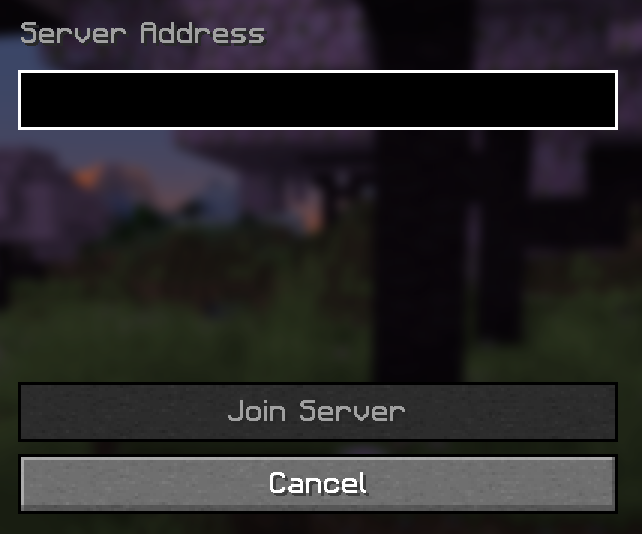
- Enter the IP:PORT you found earlier and click Join Server. You should now be connected!
- minecraft
- java
- first-steps
- setup
- connect
Host a Minecraft Java server From $3.99/mo, with instant setup and DDoS protection.
Still need help? Our team is online 24/7 to answer questions.